User Guide
A Serpent usage guide for end users. Chinese version: README.md
- Install — macOS / Windows, browser extension, upgrades
- Basics — libraries, importing, browsing, organization, file actions, and the viewer
- Search and filters — advanced query syntax, filter dimensions, and Shift multi-select
- AI analysis — supported assets, automatic/manual analysis, jobs, and privacy
- Plugin features — install, enable, update, and uninstall plugins, plus the browser extension
- Automation — automation scripts and MCP client connections
- Troubleshooting — common problems and fixes
Quick start
- Install Serpent (see Install)
- Launch the app and create a local library
- Drag images, videos, audio, 3D models, or text into the window, or click Import
- Assets appear on the canvas. Double-click to open the viewer; right-click for more actions. Thumbnails, metadata, and AI analysis complete progressively in the background
All data stays in your local library directory — no cloud sync.
Interface at a glance
A typical workspace has library navigation on the left, the asset canvas in the center, and the Inspector on the right. On Windows, the upper-left Main menu contains File, Edit, Window, Library, and Settings; macOS also exposes the same commands in the native menu. Import, search, filtering, and sorting stay in the top toolbar.
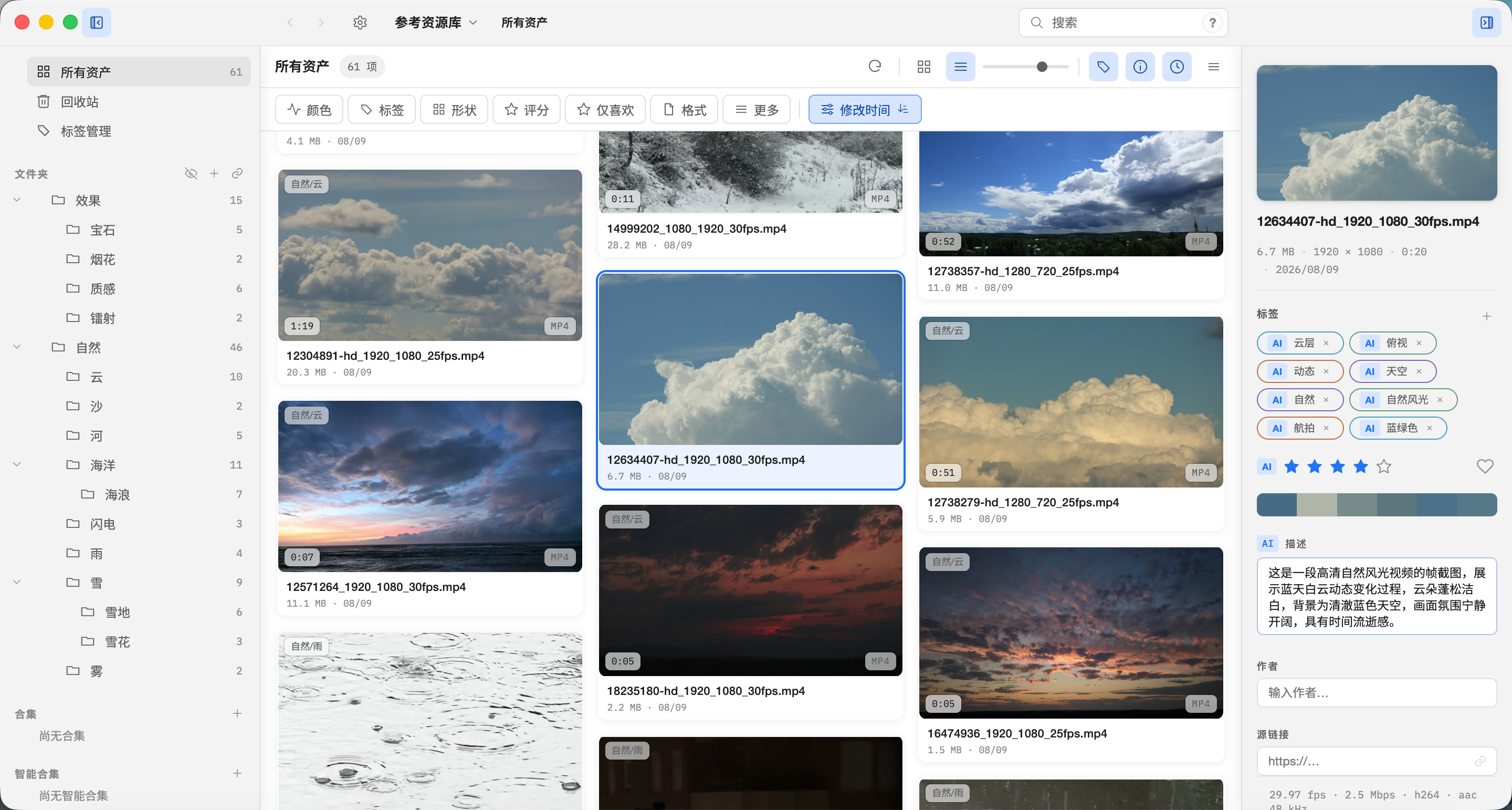
See Basics for the complete workflow.
Documentation status
This directory describes the current user-facing product. Screens and available features can change between releases; follow the latest installer and release notes.